

Step 4: Concept
In the fourth and final step, Writer generates your proposal text. Based on the requirements, writing plan, and researched facts, the AI creates a complete text draft that you can review, edit, and export.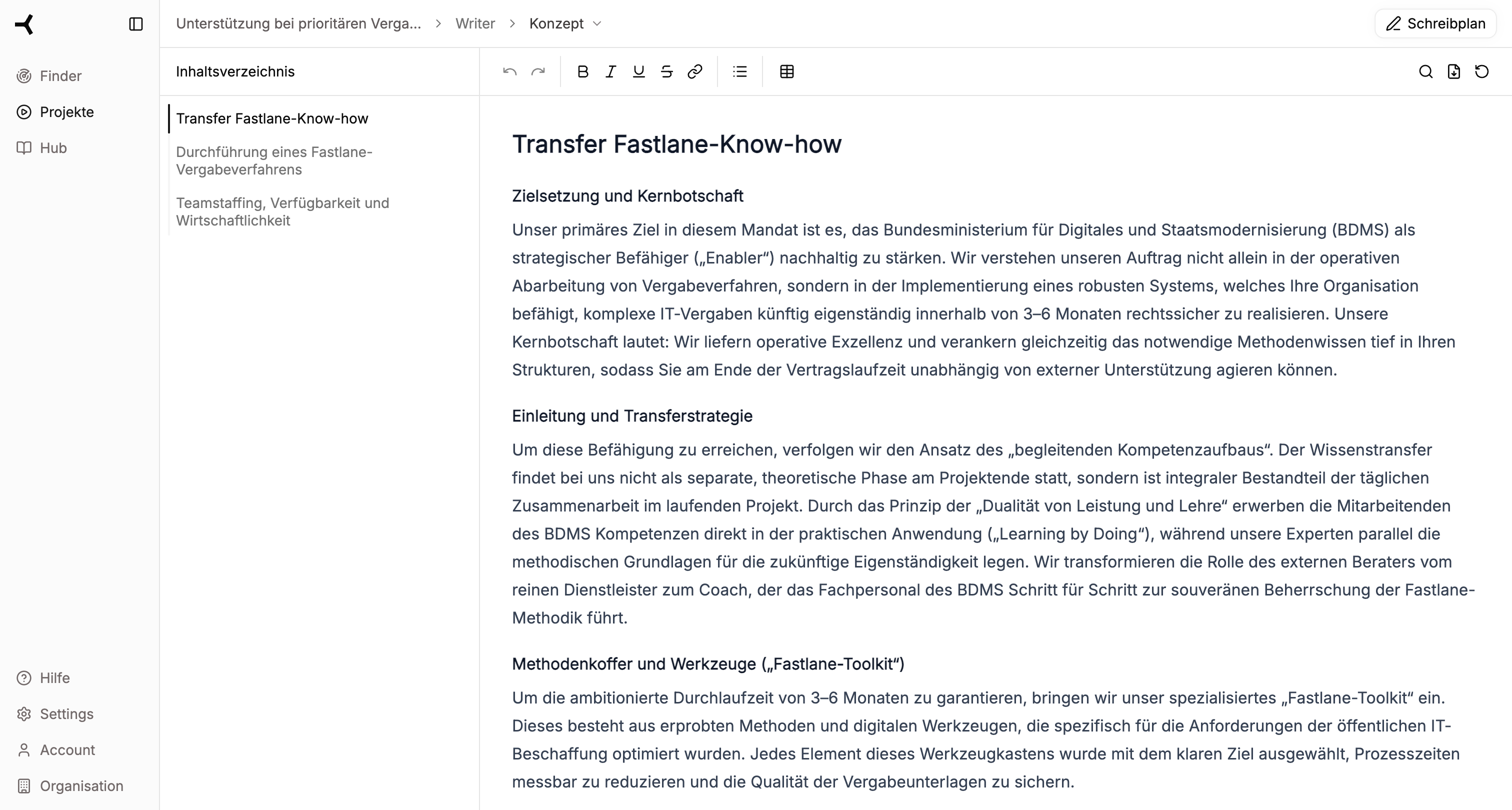
Screen Overview
| Area | Position | Function |
|---|---|---|
| Table of Contents | Left | Navigation between chapters |
| Editor | Center/Right | Text editing with formatting options |
| Toolbar | Top | Formatting, views, and export |
Two Views
The Concept editor offers two different view modes:Standard View
The standard view shows the final proposal text:- Fully formatted text
- All chapters and subchapters
- Direct editing possible
Writing Plan View
Switch to the Writing Plan View via the button in the top right:- Shows the text alongside the original writing instructions
- Helpful for comparison: What was requested vs. what was generated
- Enables targeted adjustments based on specifications
Editing Text
Small Adjustments
For minor changes, you can edit the text directly in the editor:1
Select Text
Highlight the text section to be changed with your mouse.
2
Apply Formatting
Use the toolbar for formatting:
- Bold / Italic / Underline
- Heading levels
- Lists (numbered / bulleted)
- Insert links
3
Replace Text
Delete the selected text and type your change.
AI-Assisted Editing
For AI-assisted changes, use the Forgent symbol:1
Select Text
Highlight the section you want to adjust.
2
Click Forgent Symbol
Click the ✨ symbol in the toolbar or context menu.
3
Give Instructions
Describe how the text should be changed:
- “Shorten this section by half”
- “Make it more factual”
- “Add specific numbers”
- “Emphasize customer benefits more”
4
Review Suggestion
The AI generates a change suggestion. Accept or reject it.
Major Changes
For structural or extensive changes, we recommend going through the Writing Plan:1
Back to Writing Plan
Click “Writing Plan” in the top navigation.
2
Adjust Instructions
Revise the writing instructions for the relevant chapter.
3
Regenerate Chapter
Have the chapter regenerated based on the new instructions.
4
Back to Concept
Switch back to the Concept view to review the new text.
Chapter Navigation
The Table of Contents on the left enables quick navigation:- Click on a chapter to jump directly to it
- The current position is highlighted in the table of contents
- Subchapters are displayed hierarchically indented
Copy Section
Next to each chapter heading, you’ll find the “Copy Section” option:- Click on the heading to copy the entire section to the clipboard
- Practical for quickly transferring to other documents
Export
Export as Word Document
When you’re satisfied with the text, you can export it as a Word file (.docx):1
Click Export Button
Click the Export button in the top toolbar.
2
Choose Format
Select “Word Document” as the export format.
3
Save File
The file is generated and automatically downloaded.
The exported Word document retains all formatting and can be further edited in Microsoft Word or compatible programs.
Quality Control
Before exporting, we recommend the following quality check:Check Completeness
Check Completeness
- Are all requirements from the tender addressed?
- Is important information missing?
- Does the page count match the specifications?
Check Consistency
Check Consistency
- Is the writing style consistently uniform?
- Are terms used consistently?
- Do the chapters fit together content-wise?
Verify Facts
Verify Facts
- Are all stated numbers and data correct?
- Are the references and certificates accurate?
- Are employee names and qualifications current?
Formal Requirements
Formal Requirements
- Does the format meet submission requirements?
- Are all mandatory sections included?
- Is the numbering correct?