

Step 1: Documents
In the first step, Writer analyzes your tender documents and extracts all relevant requirements. You review the results and prepare the table of contents for the writing plan.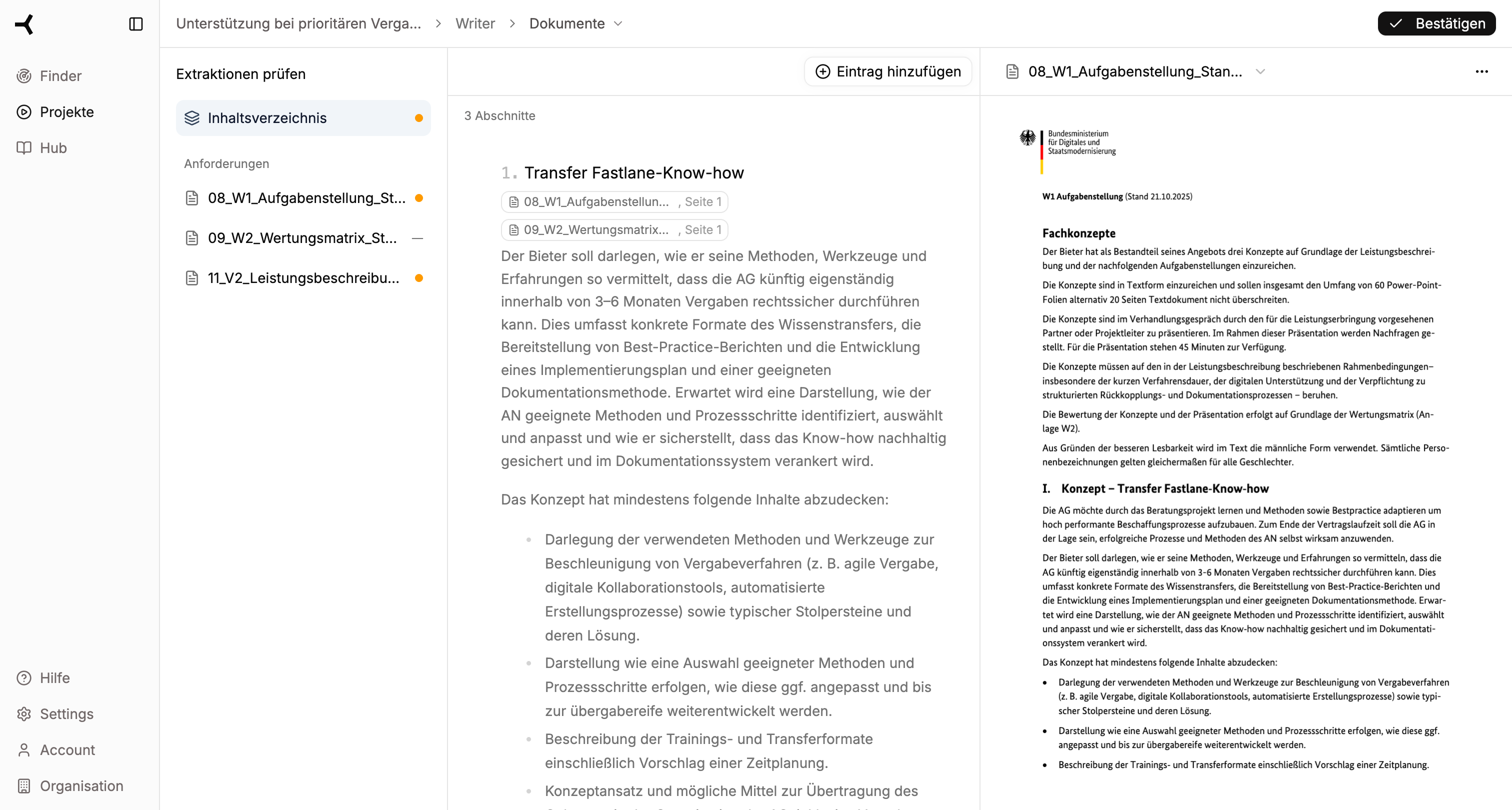
Screen Layout
The Documents view is divided into three areas:| Area | Position | Function |
|---|---|---|
| Navigation | Left | Document list and table of contents tab |
| Requirements | Center | Extracted requirements for review |
| Document Preview | Right | Original document with highlights |
Understanding Icons
Orange Dot
Orange Dot
Indicates that a requirement has not yet been reviewed. These entries require your attention.
Green Checkmark
Green Checkmark
The requirement has been reviewed and confirmed. It will be included in the writing plan.
Yellow Highlight
Yellow Highlight
In the document preview area, the AI automatically highlights the location from which the requirement was extracted.
Task 1: Review Documents
1
Select Document
Click on a document in the left navigation to display its extracted requirements.
2
Start Extraction
If not already done, start the requirement extraction for each document. The status is displayed next to the document name.
3
Check Completeness
Make sure all relevant documents have been analyzed before proceeding to the next step.
Task 2: Review Requirements
Check each extracted requirement for correctness and relevance. Use keyboard shortcuts for efficient processing:| Shortcut | Function |
|---|---|
X | Mark requirement as reviewed (confirm) |
Shift + X | Reject requirement / mark as not relevant |
Del / Delete | Delete requirement |
E | Edit requirement |
Task 3: Review Table of Contents
Switch to the Table of Contents tab in the left navigation:1
Switch Tab
Click on “Table of Contents” in the left sidebar.
2
Review Structure
The AI has automatically created a table of contents based on the tender requirements. Check whether the proposed structure makes sense.
3
Make Adjustments
If needed, you can rename, add, or remove chapters. This structure forms the basis for your writing plan.
Using Filters
Above the requirements list, you’ll find filter options:- Formal – Shows formal requirements (e.g., submission deadlines, format specifications)
- Content – Shows content requirements (e.g., service descriptions, concept requirements)
The distinction between formal and content requirements helps you focus on the relevant points for your concept.
Continue to Writing Plan
Once you’ve reviewed all requirements and adjusted the table of contents, click “Confirm” (top right) to proceed to the next step.Continue to Step 2: Writing Plan
Create structure and define writing instructions